Some PDFs mix instructions and drawings. Here’s a real two-page example showing which page to convert, how to set its width, and what to check in the result.
Original example artwork. No account or purchase needed for this practice kit.
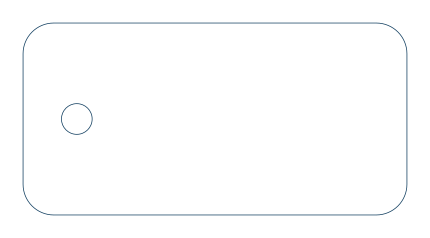
Our example: one rounded outline + one hole. Detail enlarged; dimensions are checked below.
100 × 50 mmOriginal drawing
4 × 2 inchesAfter setting width
2 outlinesOuter shape + hole
Try it yourself
A tiny practice kit. All free.
The PDF has instructions on page 1 and plain vector outlines on page 2. The ready-made SVG and DXF show the same drawing resized to 4 inches wide. Download those exports here for free; this kit does not need checkout.
Use or adapt this original artwork for testing. It is a file-workflow example, not a tested cutting plan. Verify dimensions in your own software before using any drawing.
See the real result
The 30-second walkthrough
Open the practice file, inspect the outlines and change the width. This is an actual screen recording, edited and paused for clarity. Silent with captions; use full screen to see the small controls.
Read the demonstration transcript
Open the free practice kit. Its PDF has instructions on page 1 and the drawing on page 2.
Choose “Try this PDF in the preview.” Page 2 opens at a 4-inch target width.
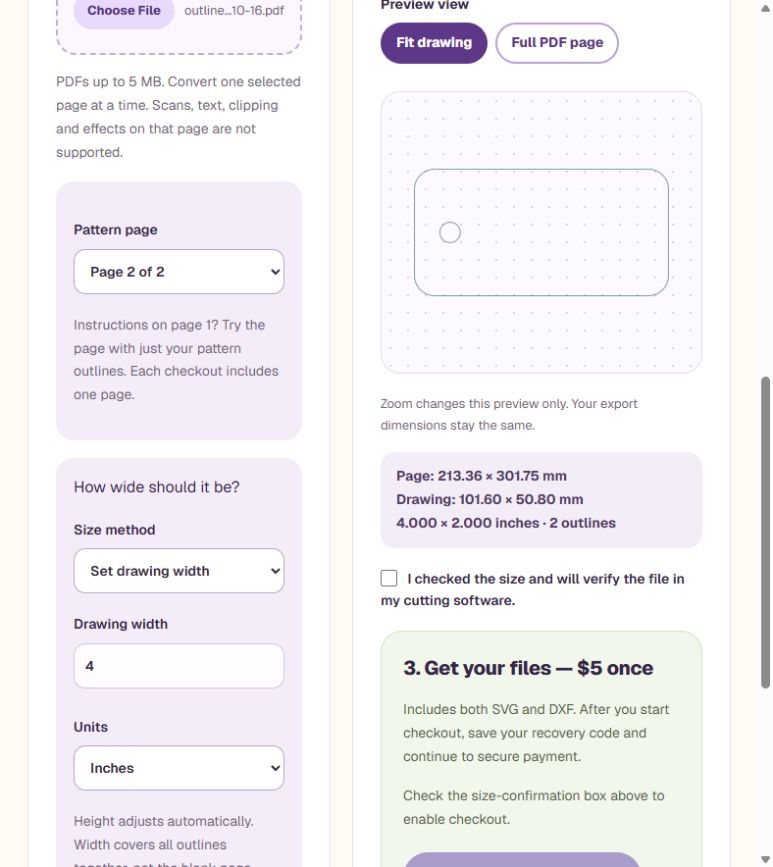
Use Fit drawing to inspect the outer tag and circular hole. Full PDF page shows the blank margins; it does not change export dimensions.
Set Drawing width to 6 inches. The drawing becomes 6 × 3 inches, or 152.40 × 76.20 mm.
Set it back to 4 inches. The result is 4 × 2 inches, or 101.60 × 50.80 mm.
The practice SVG and DXF downloads are free. For your own compatible PDF, preview free; both exports cost $5 once per selected page. No purchase is shown.
01 · Open
Open the practice PDF, or choose your own
The practice button above loads our original PDF directly and selects page 2 with a 4-inch target. Its preview and exports are free.
To test the manual workflow, download the practice PDF, open the free preview with a 4-inch target and choose the file. The first page contains written instructions, so that page is rejected. The converter extracts existing outlines rather than tracing letters or pictures.
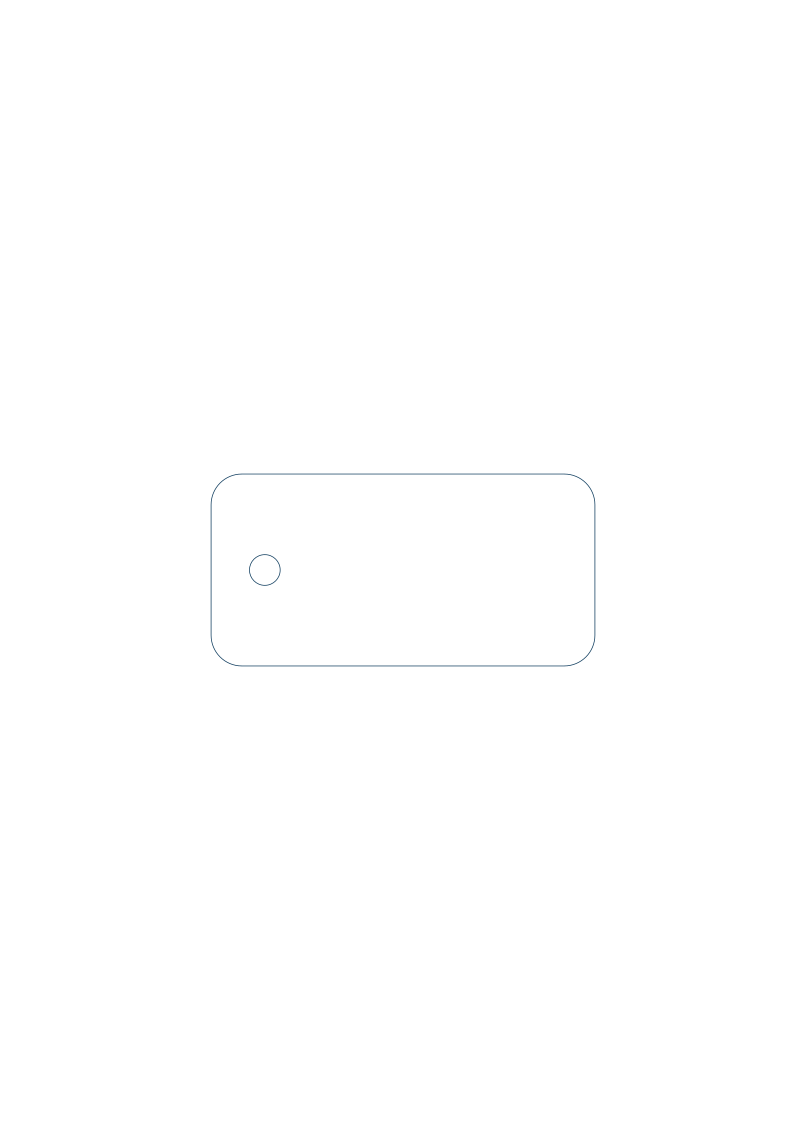
Use Pattern page or Next page to select Page 2 of 2. The small original-page picture helps you find the drawing; it is not the converted result. Use View converted outlines to jump to the actual vector preview. You do not need to delete the instruction page or split the PDF first. Only the selected page is converted.
The unchanged original practice PDF is also recognized when you choose it manually, even if your browser renamed the download. Its SVG and DXF remain free. If you edited or re-saved the PDF, use the original practice download or the one-click button to follow this free example.
Watch: instruction page rejected? Choose the drawing page.
This 30-second recording shows the actual app with our downloaded two-page PDF. The text page fails the outline check; the drawing page passes. Screens are edited, zoomed and held for clarity. Silent with captions; use full screen for the small controls.
Choose the original practice PDF from your device. Page 1 contains written instructions, so its text is rejected by the outline converter.
Choose Next page, or select Page 2 of 2 under Pattern page.
Page 2 contains the plain vector tag and hole. The outline preview is now available.
Set Drawing width to 4 and choose Inches. Height follows the drawing's proportions.
Check 4 × 2 inches, or 101.60 × 50.80 mm. Both practice downloads are free; no purchase is shown. Your own compatible PDF exports cost $5 once per selected page.
Changing pages does not remove text or scans from a drawing page. That selected page still needs to pass the compatibility check.
02 · Size
Set the drawing width to 4 inches
The link above carries the target into the preview. You can also enter 4 under Drawing width and choose Inches. The outer shape starts at 100 × 50 mm, so its 2:1 ratio gives a result of 101.60 × 50.80 mm, or 4.000 × 2.000 inches.
The hole scales with the rest of the drawing. Its original 8 mm diameter becomes approximately 8.128 mm. Width applies to all outlines together, not to each separate piece.
03 · Inspect
Compare the drawing, not the blank margins
Fit drawing enlarges the outlines so you can inspect the corners and hole. Full PDF page shows where they sit on the page. Switching views does not change export dimensions.
For this example, the resized page is about 213.36 × 301.75 mm. That is larger than the 101.60 × 50.80 mm drawing because the page includes blank margins. Use the Drawing size measurements to check the tag’s overall size.
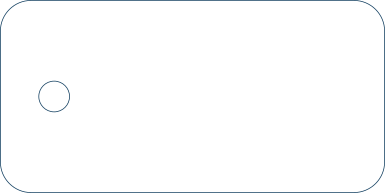
Actual preview of the practice file. The original PDF remains on the device during preview.
Optional · Less blank space
Keep the page, or fit the SVG around your drawing
In the preview, set SVG canvas to Tight around drawing to remove the blank page margins. Choose SVG export canvas to see the framing that will be downloaded.
The 4 × 2 inch practice drawing stays 101.60 × 50.80 mm. Its tight SVG canvas is 101.80 × 51.00 mm, including a 0.1 mm edge on each side for the display stroke. Curves, spacing and DXF coordinates stay the same. Changing the canvas does not resize the drawing.
Full PDF page remains the default. The ready-made downloads at the top use that original full-page canvas. You can also download this free 4-inch SVG with a tight canvas, or use the live practice preview to choose your own sample width.
Watch the 27-second canvas demonstration
Actual OutlineConvert screens, edited and paused for clarity. Silent with captions; use full screen for the small controls.
The original full-page SVG includes blank margins around the practice tag.
Choose SVG canvas → Tight around drawing.
The preview fills more of the screen, but the drawing is not rescaled.
Drawing size stays 4 × 2 inches. The SVG canvas is 101.80 × 51.00 mm, including a 0.1 mm edge on each side.
The sample SVG and DXF are free. Your own compatible PDF exports cost $5 once per selected page. No purchase is shown.
04 · Check the export
Open the practice SVG or DXF in your software
Use the free files above to inspect the result. The SVG keeps cubic curves; the DXF represents curves with short line segments within the converter’s 0.02 mm tolerance. Colors, fills, stroke thickness and dash patterns are not preserved.
Measure the outer width after import: it should be 101.6 mm or 4 inches. Import behavior varies by program, so do this check before relying on a file. The exports contain outlines, not machine settings.
Have your own drawing?
Preview free. Pay only when the outlines fit your needs.
For your own compatible PDF, one $5 checkout includes SVG and DXF for one selected page. No subscription. Check the size and preview first; checkout appears after a successful preview and size confirmation.
Scans, text, clipping, annotations and effects are unsupported.
No photo tracing, OCR or automatic repair of unsuitable artwork.
A few common questions
Can I use a scan or a photo saved as a PDF?
This vector tool does not trace images. If you need a flat picture instead, save the PDF page as PNG or JPG for free. That produces an image, not editable vector outlines.
What if my pattern page includes labels?
Actual text on the selected page is rejected. Choose a page containing only outlines, or prepare a copy in your design editor with text converted to paths or removed as appropriate. Converting labels to paths makes them outlines too, so inspect every resulting path.
Will this resize each pattern piece to 4 inches?
No. The width covers the combined bounds of all outlines on the selected page. If several pieces share a page, their relative sizes and spacing scale together. This example has one outer tag and one hole inside it.
Do I need to pay to follow this example?
No. Previewing is free, and the practice PDF, SVG and DXF on this page are free downloads. Use those downloads for the walkthrough. The paid export is for your own compatible PDF page.