OutlineConvertFREE PDF WALKTHROUGH

Merge · Select · Reorder

Just the pages.
In your order.

Have two PDFs, a few extra pages, and a cover hiding at the end? Keep the pages you need and put them into one tidy file. This example turns five source pages into a three-page PDF.

Open the free PDF organizer →

No uploads, account or payment. Your original files stay unchanged.

The finished order

  1. 1
    Project coverNotes PDF · page 3
  2. 2
    Assembly notesNotes PDF · page 1
  3. 3
    Final checklistChecklists PDF · page 2

Pick 3, 1 from the first file.
Then pick 2 from the second.

Use our files first

A small practice packet. All free.

These original, synthetic PDFs contain no customer information. Download both inputs, then follow the steps below. The finished PDF is included so you can compare your result.

Use or adapt these example files. They demonstrate page organization; they are not a real assembly plan.

01 · Add

Choose your PDFs

Open the PDF organizer and select Add PDFs. Choose the two practice files. You can also add one file, then use the same button to add another.

Files are read in your browser. The list shows each file’s name and page count. Use the Up or Down buttons so project-notes.pdf appears first and checklists.pdf appears second.
02 · Choose

Keep the right pages, in the right order

Under Pages to keep, in order, enter 3, 1 for project-notes.pdf. That puts its cover before its assembly notes and leaves out the old draft on page 2.

For checklists.pdf, enter 2. That keeps its final checklist and leaves out the extra reference page.

Settings for this example
File orderPages to keepResult
1. project-notes.pdf3, 1Cover, then notes
2. checklists.pdf2Checklist last

Blank keeps all pages. A range such as 2-4 keeps pages 2, 3 and 4. You can combine entries, such as 5, 1-3. Repeating a number intentionally adds another copy.

03 · Preview

Create your PDF and check all three pages

Leave rotation on Keep current rotation, then select Create my PDF. The preview should say 3 pages.

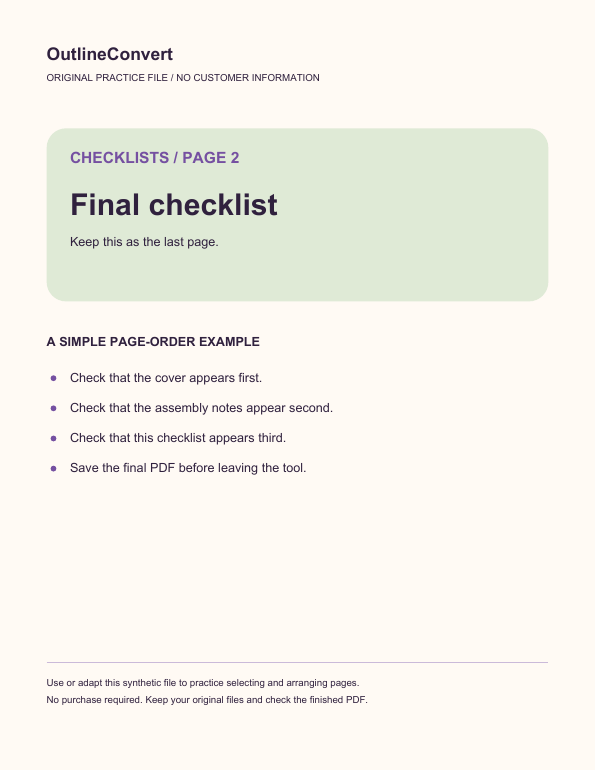
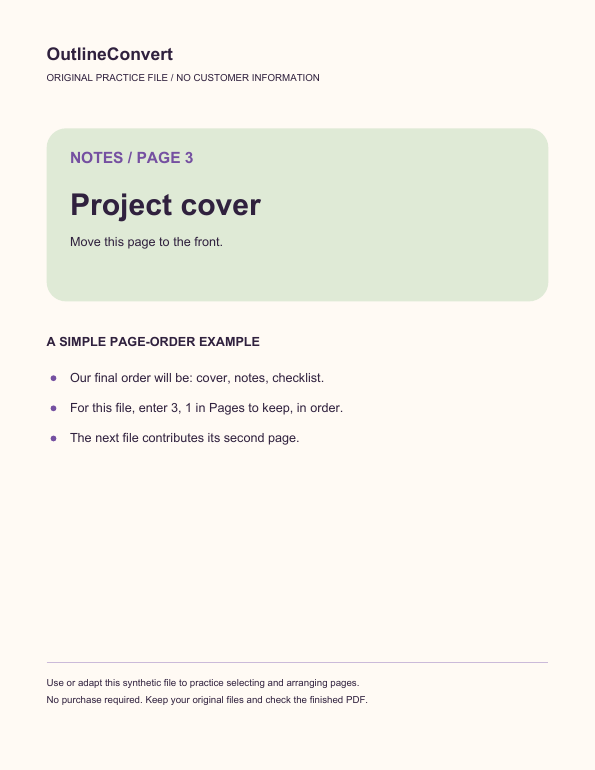
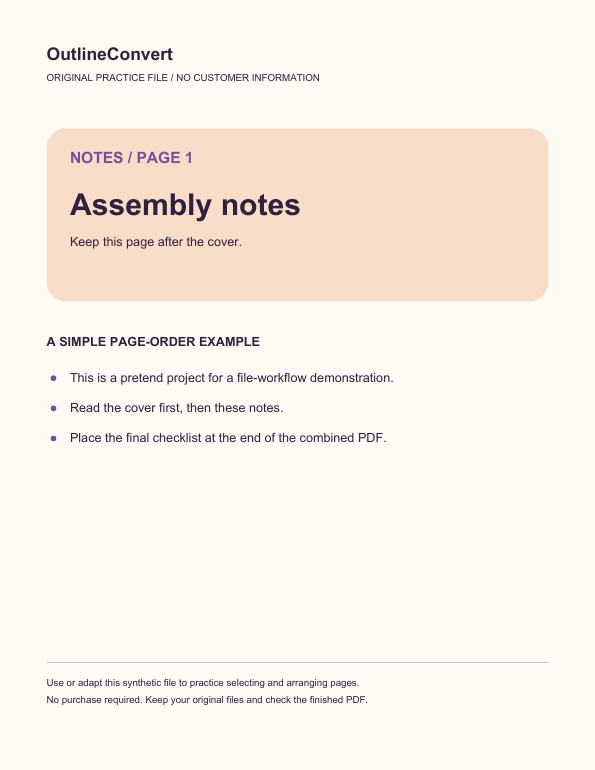
Use Preview page to check page 1 (cover), page 2 (assembly notes) and page 3 (checklist). The images below were rendered from the actual file downloaded through the public tool.

Actual output page 1: Project cover
1. Project cover
Actual output page 2: Assembly notes
2. Assembly notes
Actual output page 3: Final checklist
3. Final checklist

04 · Save

Download the finished PDF

Select Download PDF — free. The example keeps its original US Letter page size and searchable text. We checked the downloaded file’s page order, dimensions and text, as well as its rendered pages.

Download before leaving or refreshing the tool. If the download does not start, use Open PDF in a new tab, then your browser’s save or share menu. Check your own finished file before sending or printing it.

Ready for your files?

A fresh order, without a new account.

Merge ordinary PDFs, select pages, repeat a page or rotate a selection. The organizer is free. It does not change your source files.

Arrange my PDFs →
Keep these limits in mind
  • Up to 10 PDFs, 20 MB each and 50 MB combined.
  • Up to 200 source pages and 200 output pages.
  • Password-protected PDFs, interactive forms and signatures are unsupported.
  • Bookmarks and attachments are not carried over.

A few page-order questions

Can I keep only one page from a PDF?

Yes. Add the PDF and enter that page number under Pages to keep, in order. Create and download the result. For several pages, use commas or ranges.

Can I rotate just one page?

Rotation applies to the selected pages in each file entry. Add the same PDF again and give that entry only the page that needs a different rotation. Arrange the entries to get your intended order. Check the preview before downloading.

Will scanned text become searchable?

No. The organizer preserves page content but does not run OCR. Existing text stays text; a scan stays an image. To turn PDF pages into separate pictures, use the free PDF-to-image tool.

How do I combine images instead of PDFs?

Use images to PDF for JPG, PNG and WebP inputs. It creates one image per page. The PDF organizer is for files already in PDF format.

Does this tool cost $5?

No. PDF organization and these practice files are free. The separate vector-outline converter charges $5 for SVG and DXF exports from one compatible PDF page; it is not needed for this walkthrough.